Flash
You can view and see all deposit/withdrawal transactions, including completed, open/pending, and cancelled transactions, for both crypto and fiat.
Here, you will find detailed information about your current and past orders, including:
- App
- Web
App
How to Use Flash?
What is Flash?
Flash is CoinByte’s real-time crypto news center. It provides the latest market updates, project announcements, and analysis to help you stay informed.
How to Access Flash
- Tap the Flash in the bottom navigation bar.
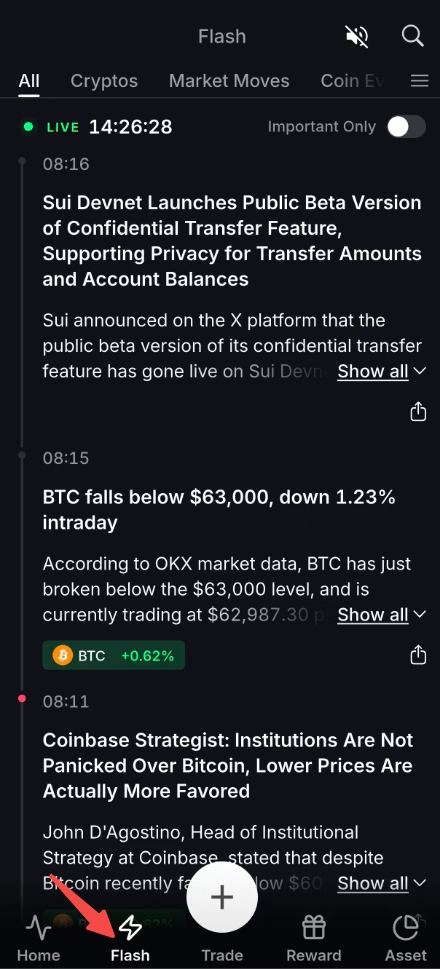
Main Flash Page
- Switch between tabs: All、Cryptos、Market Moves、Coin Events、Listings、Risk Alerts、Market Themes、On - chain、Macro.
- Toggle Important Only to see only high-priority news.
- Live timestamp shows real-time updates.
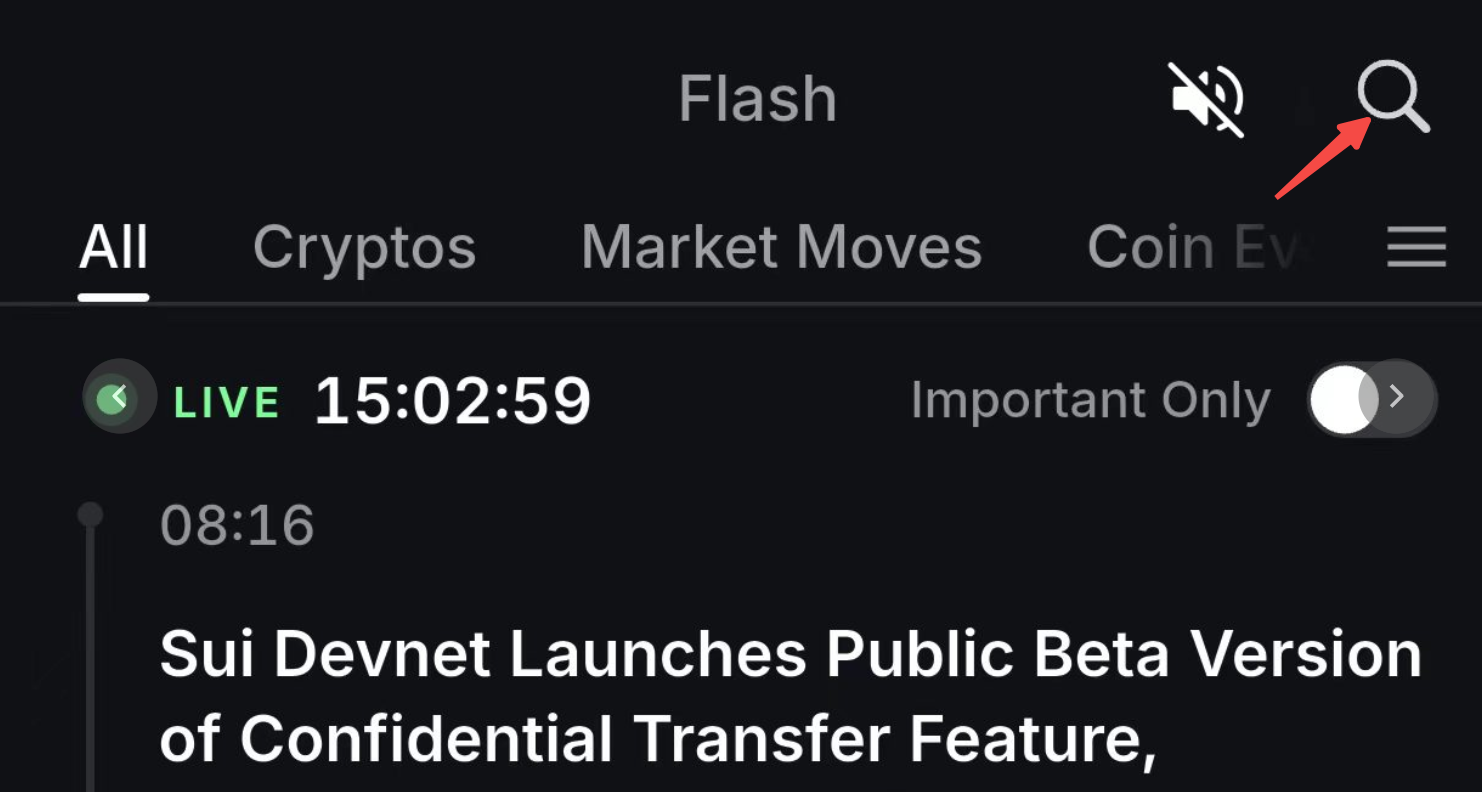
- Select the
 button in the upper right corner.
 - The search bar at the top allows you to quickly search for specific topics, coins, or keywords.
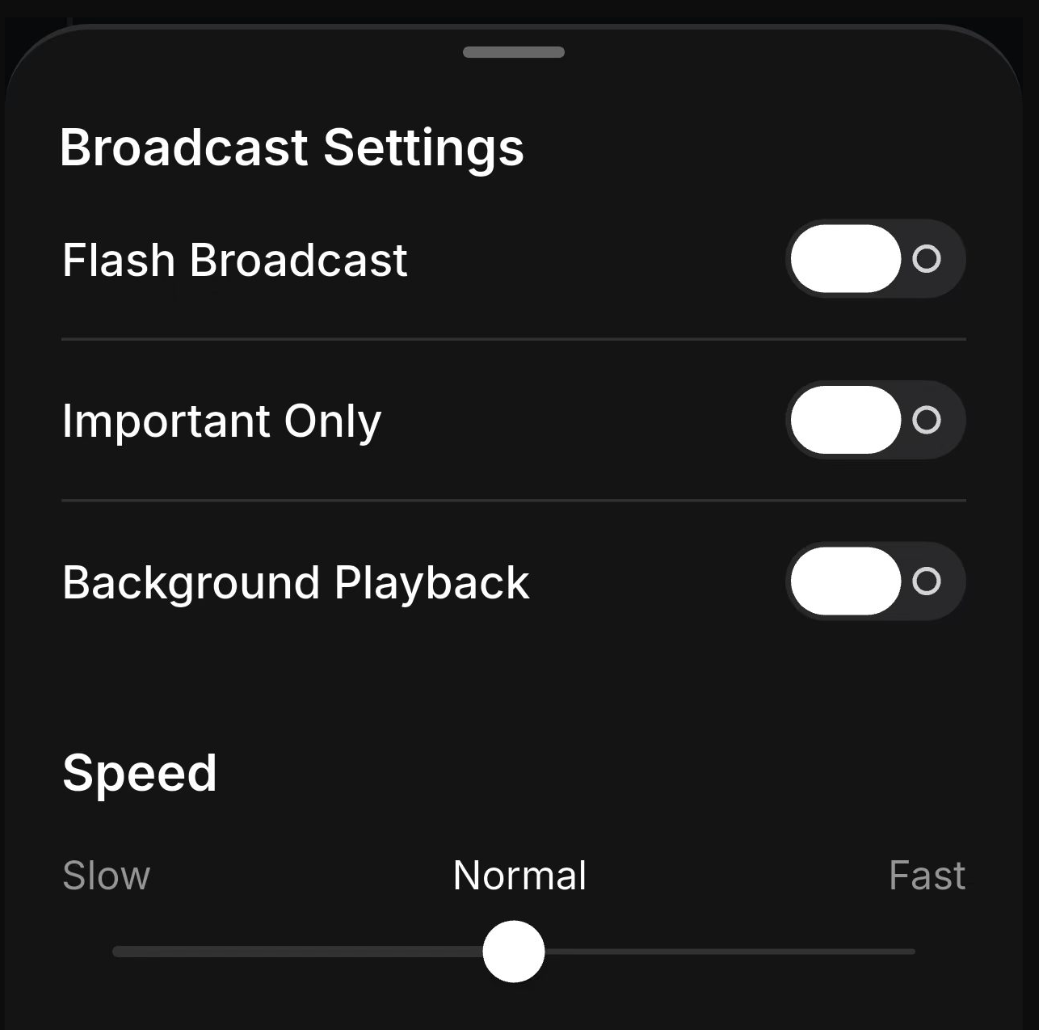
Broadcast Settings
You can customize how Flash delivers news by going to Broadcast Settings.
- If you select
 here, you will be in Broadcast Settings.
 - Adjust the following options:
- Flash Broadcast: Main switch to enable/disable all Flash updates.
- Important Only: Enable this to receive only critical news and alerts.
- Background Playback: Allow Flash to continue updating even when the app is running in the background.
- Speed: Use the slider to choose how fast news content scrolls or updates (Slow / Normal / Fast).
How to Manage Flash Channels
What are Channels?
Channels allow you to personalize the news you see in Flash. You can choose which topics to follow, reorder them, or hide ones you’re not interested in.
How to Access Channels
- Open the Flash page and tap the
 icon in the top right corner.
 - Tap the Channels icon or menu (usually located near the top right).
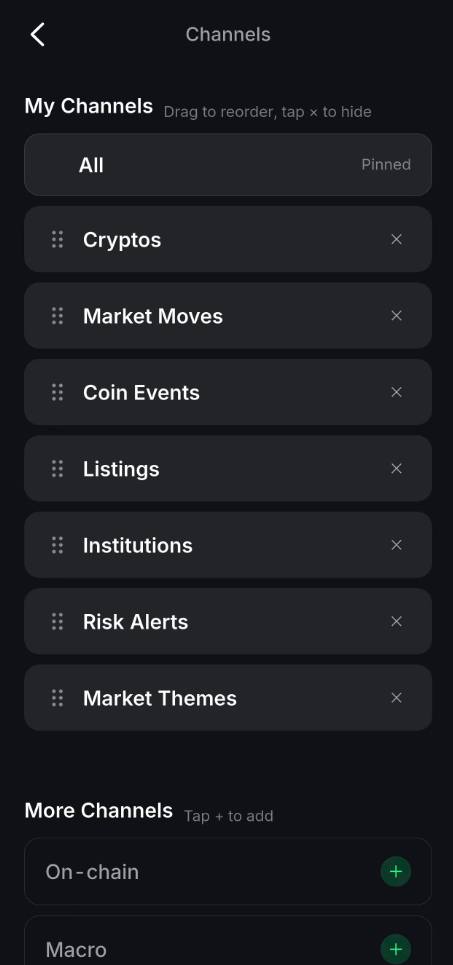
Managing Your Channels
- Reorder: Long-press and drag channels up or down to change their display order.
- Hide a Channel: Tap the × icon on the right of any channel in "My Channels".
- Add New Channels: Scroll to More Channels and tap the + button next to the channel you want.
Customizing your channels helps you focus on the market topics most relevant to you, such as Bitcoin news, new listings, or on-chain developments.
Web
- Select Assets on the header.
- Select History on the left side menu.
- In the Transaction History, you can view all your past deposit/withdrawal records.
- The details of this transaction record are shown, including asset amount, transaction status, type of transaction, transaction fee and time.